Notifications
How-toEmail notifications
A confirmation email to the customer and a new-booking email to your team, and when each one is sent.
Updated Sep 30, 2026
When a customer submits a booking, ServiceReserve can send two emails:
- Customer confirmation. Goes to the email address the customer entered. The subject reads "Your booking with your company has been received".
- Team notification. Goes to every address on your internal recipient list. The subject reads "New booking: customer name · form name". It links to the request in your workspace.
Both emails list the customer's contact details, the selected services, the preferred time, the service address, and the intake answers.
When each email is sent
The customer confirmation is sent when both are true:
- The customer entered an email address.
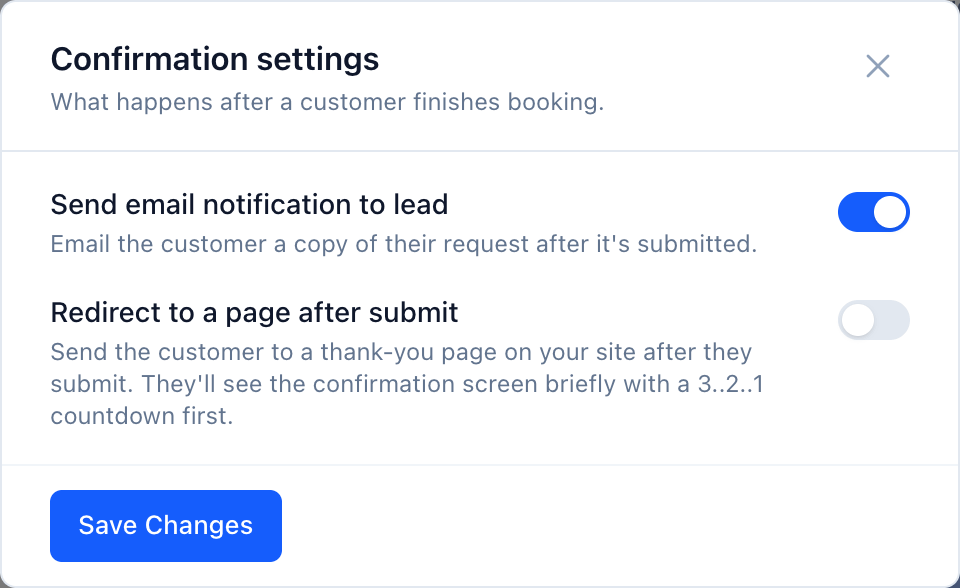
- Send email notification to lead is on for the form. It's on by default.
The team notification is sent when both are true:
- The Email notifications integration is enabled.
- Your recipient list isn't empty.
Turn the customer confirmation on or off
- 1
Open the form
Go to Booking Forms and open the form. You land on the Appearance tab.
- 2
Open the confirmation settings
In Booking Steps, click the settings icon on the Confirmation row. The Confirmation settings dialog opens.
- 3
Set the toggle
Switch Send email notification to lead on or off. Booking step changes save automatically.
Set team recipients
Recipients are set once for the workspace. They get an email for bookings on every form.
- 1
Open Email notifications
In the sidebar, under Integrations, click Email notifications. If it isn't listed, open Integrations → Browse (or Manage) and enable it. Turning on an integration requires starting your free trial first.
- 2
Add addresses
In Internal recipients, type an address and click Add email or press Enter. Each address gets its own copy.
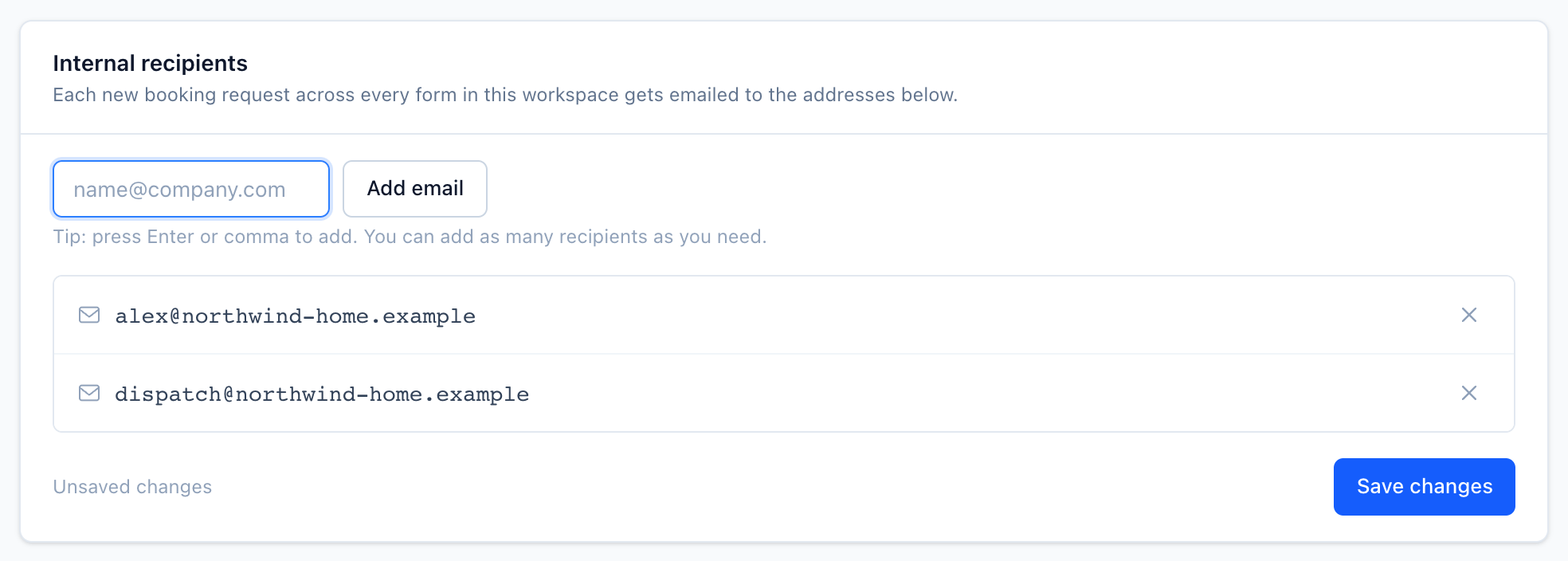
New addresses aren't saved until you click Save changes. - 3
Save
Click Save changes.
If you've never saved a list, the account owner's email is used. An empty saved list means no team emails. Only owners and administrators can change recipients.
To stop team emails entirely, switch off the toggle in the page header.
Check delivery
- Recent deliveries on the Email notifications page shows the last 50 team notification emails and their status.
- On a request's detail page, Integration activity lists every email sent for that booking, including bounces and failures.
- Emails are sent through Resend. Opens and clicks are tracked. Failed sends are retried automatically.
Related
Send every completed booking to your own endpoint as a signed webhook or a custom HTTP request.
View, filter, and search the bookings that come in, move them through pipeline stages, add internal notes, and export them to CSV or the API.
Which apps ServiceReserve connects to, how to turn an integration on, and how to check what it sent.