Integrations
How-toQR code
Download a QR code that opens your booking page and tags scans with source=QR.
Updated Sep 30, 2026
Every booking form has a QR code. Put it on trucks, business cards, door hangers, signs, or invoices. A scan opens the booking page on the customer's phone.
Get the QR code
- 1
Open the form
Go to Booking Forms, open the form, and click the Share tab.
- 2
Find the QR code card
The QR code card shows the code and the URL it opens.
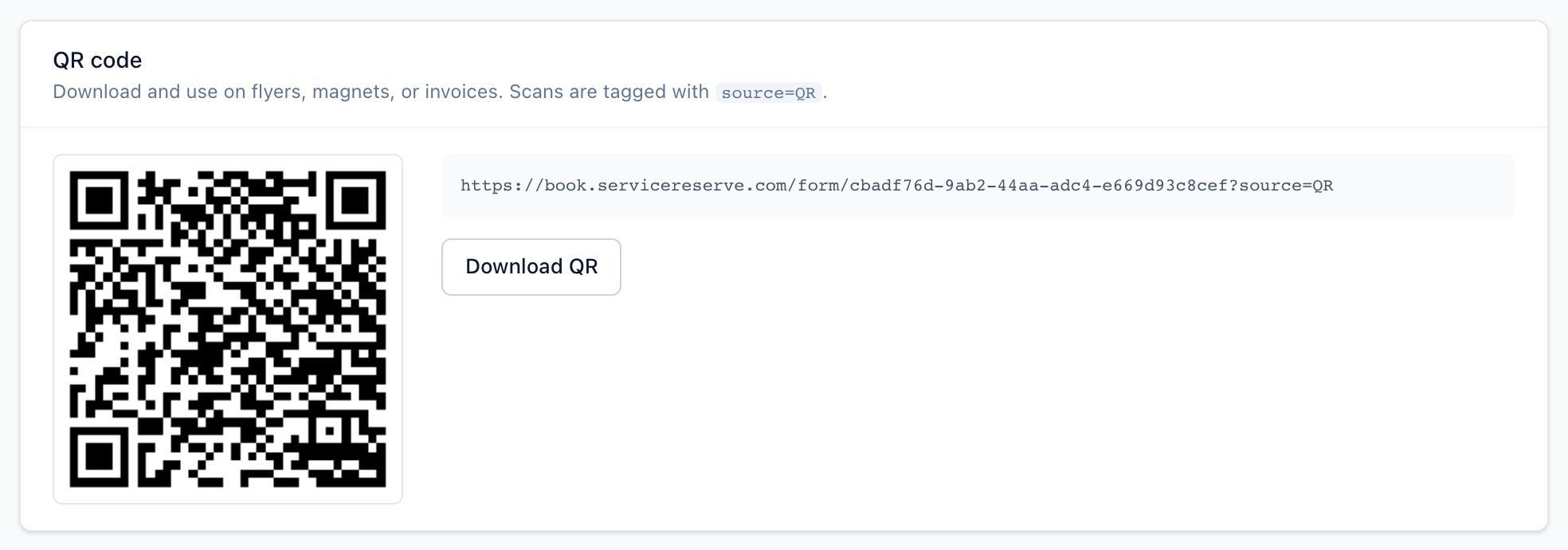
The QR code card, below Booking form URL on the Share tab. - 3
Download it
Click Download QR. A 220×220 PNG opens in a new tab. Save it from there.
For print, use the larger 512×512 PNG from this address:
https://book.servicereserve.com/api/form/3bf957f4-4249-4662-a7e0-51e0da73313d/qrReplace the ID with your form's ID. It's in the address bar when you open the form.
What it encodes
The code opens your direct link with
source=QR added:
https://book.servicereserve.com/form/3bf957f4-4249-4662-a7e0-51e0da73313d?source=QRBookings from a scan are recorded with the source QR.
Track print runs separately
To tell different print runs apart, add your own source to the
image address:
https://book.servicereserve.com/api/form/3bf957f4-4249-4662-a7e0-51e0da73313d/qr?source=truck-wrapThat QR code opens the booking page with ?source=truck-wrap.
Related