Account
How-toTeam members
Invite teammates, assign roles, and remove access from Account → Organization.
Updated Sep 30, 2026
You manage your team on the Team card of Account → Organization. Owners and administrators can invite. Only the owner can change roles or remove members.
Invite a teammate
- 1
Open Organization
Click Account at the bottom of the sidebar, then Organization. Scroll to Team.
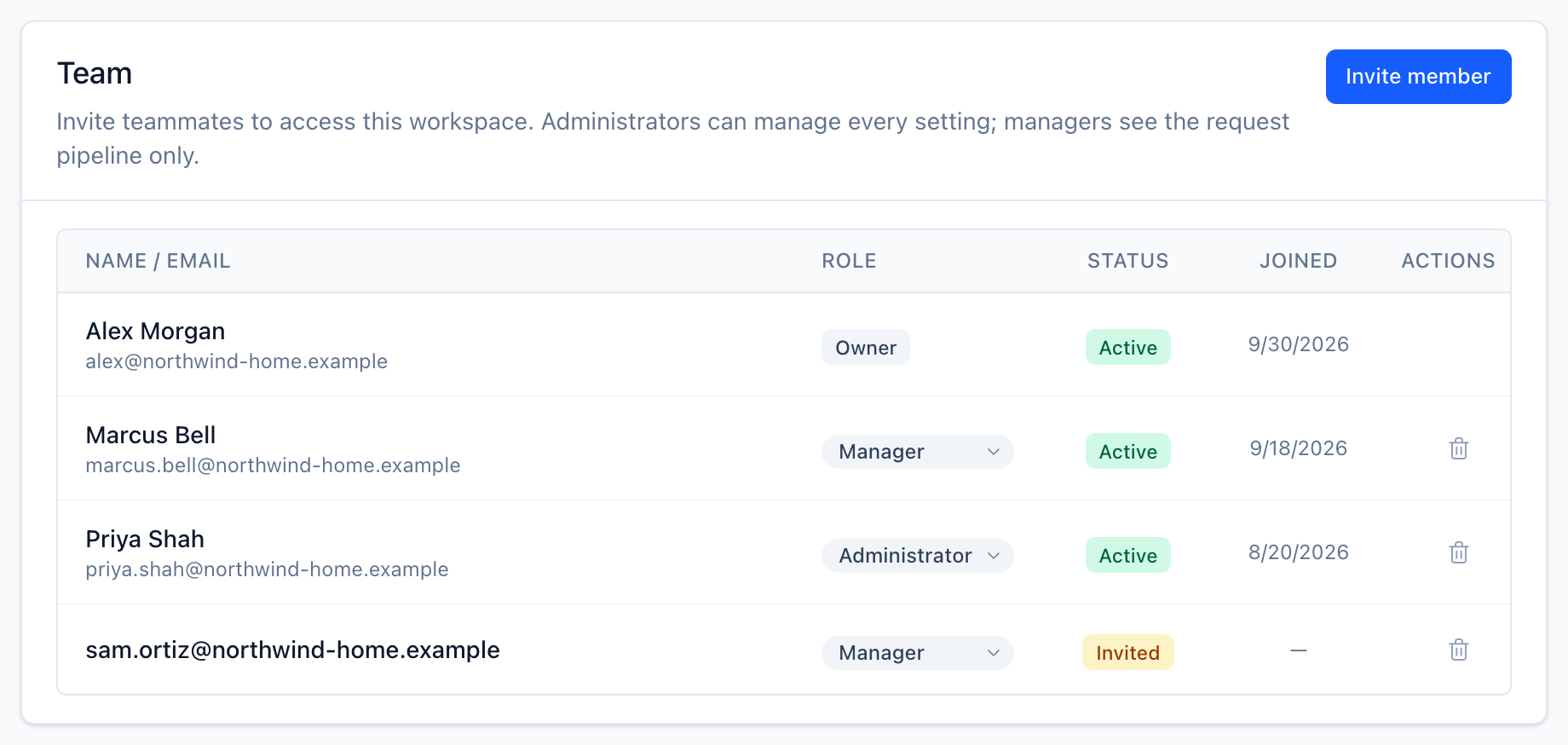
The owner is marked Owner. Invites that haven't been accepted yet show as Invited. - 2
Send the invite
Click Invite member. Enter their Email address, pick a Role, and click Send invitation. The role defaults to Administrator. The email arrives within about a minute.

- 3
They accept
New users create an account and verify their email. Then they join your workspace. People who already have a ServiceReserve account are added right away; the email tells them they have access.
Invite links work once and expire after 7 days. If a link expires, send a new invitation.
Change a role
The owner picks a new role from the dropdown on the member's row. See Roles for what each role can do.
Remove a member
The owner clicks the trash icon on the member's row, then Remove. The person loses access to your workspace immediately. Their ServiceReserve account and any other workspaces they belong to aren't affected.
What teammates see
Administrators see and manage every setting. Managers see the request pipeline only: Requests, Abandoned, and Analytics.
Related