Forms
How-toServices
Build the services customers can book — sets, categories, services, and intake questions.
Updated Sep 30, 2026
Services are the menu customers pick from. They're organized as a set → category → service, with optional intake questions on a category or a service.
How customers pick
Customers pick a category first, then one service inside it. Then they answer any questions attached to what they picked. If a set has only one category, customers go straight to the services.
General Services
├─ Service Call
│   └─ Q: What's the issue?
└─ Consultation

Emergency Services
└─ Emergency Call
    ├─ Q: Is anyone in immediate danger?
    └─ Q: When did the issue start?
Questions on a category apply to every service in it.
Edit your services
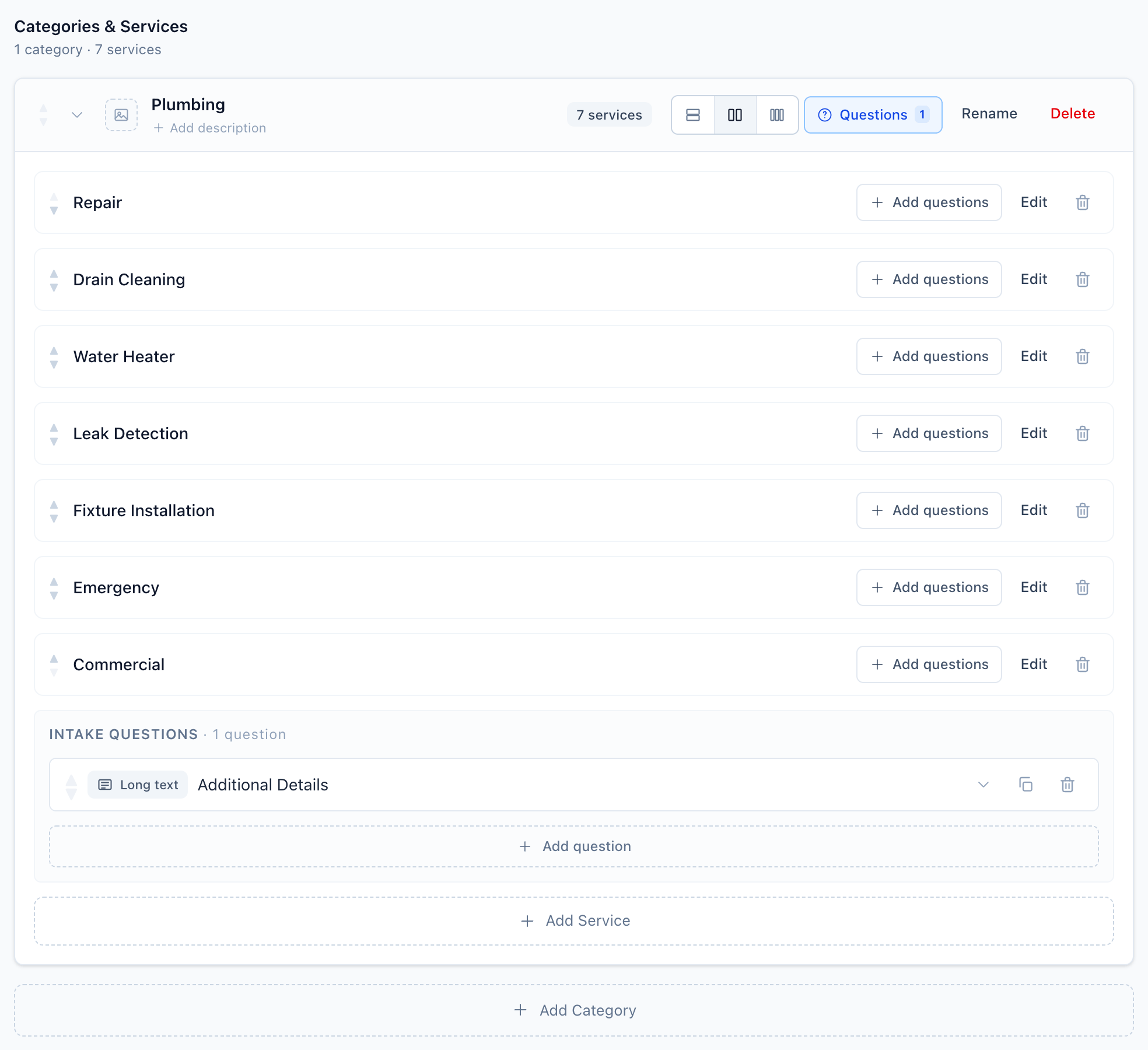
In the sidebar, click Services, then open a set. Your default set is named after the industry you chose at sign-up, or Primary services if you chose Other.
- Add or remove categories. Inside each category, add or remove services and questions.
- Use the ▲ and ▼ arrows to reorder categories and services.
- Drag questions to reorder them or move them to another category or service.
To create another set, click Add new set.
Turn on the services step
Make sure the step is on for your form:
- Go to Booking Forms and open your form.
- On the Appearance tab, under Booking Steps, turn on Categories/Services.
- Next to Use, keep Default services set or pick another set.
On the form created at sign-up, this step starts on if you picked an industry and off if you chose Other. Forms you create later have it on.
Intake question types
Short textLong textNumberDropdownDropdown (multi)RadioCheckboxesYes / NoAmountMultiple amountsFile uploadYou can also add content blocks between questions: Section title, Text block, Image, and Step break.
Sets vs forms
Sets belong to the workspace and can be shared by several forms. Edit a set once and every form that uses it picks up the change. Create another set only when two forms need different services.
Related