Forms
How-toBranding
Logo, colors, header layout, and fonts — customize each booking form so the booking page looks like your business, not ours.
Updated Sep 30, 2026
Branding settings on a form control how the booking page looks. They apply everywhere the form appears: the direct link, an inline embed, and the popup.
Where to edit
Go to Booking Forms and open your form. Branding is the first section on the Appearance tab. Click Save Changes when you're done.
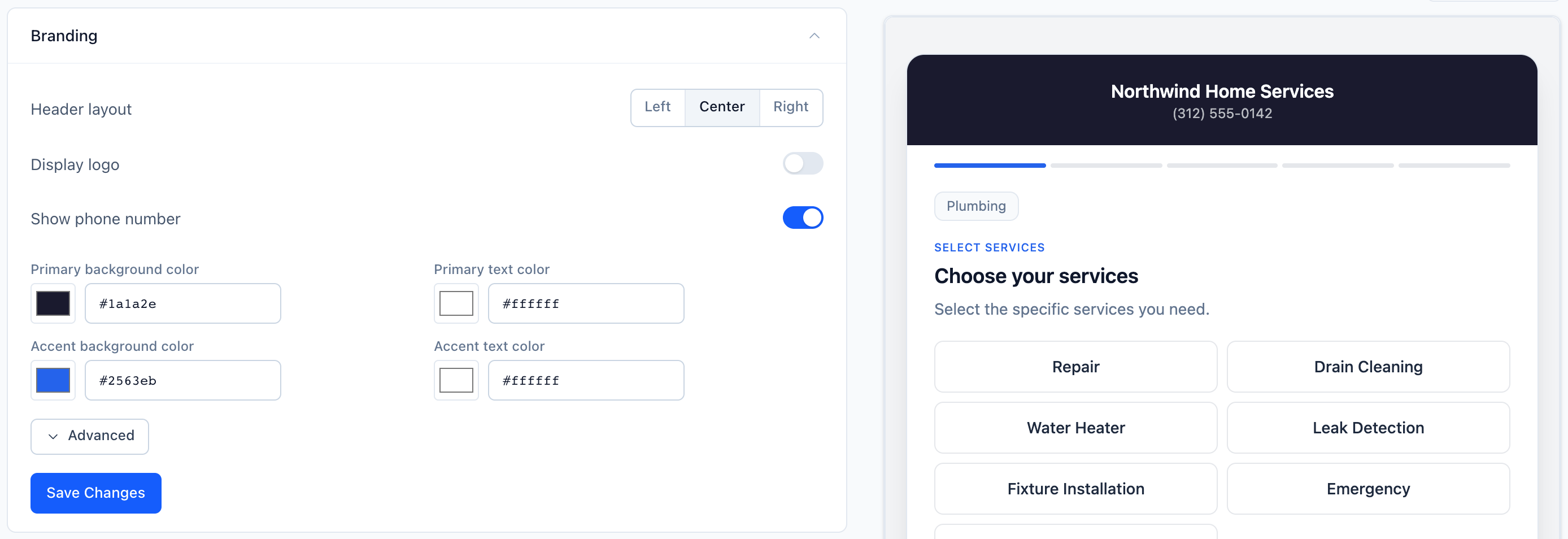
What's configurable
Header layoutDisplay logoShow phone numberPrimary background colorPrimary text colorAccent background colorAccent text colorThe header always shows the Company name and Address from Default information. Step headings and text are edited per step under Booking Steps with the pencil icon.
Advanced
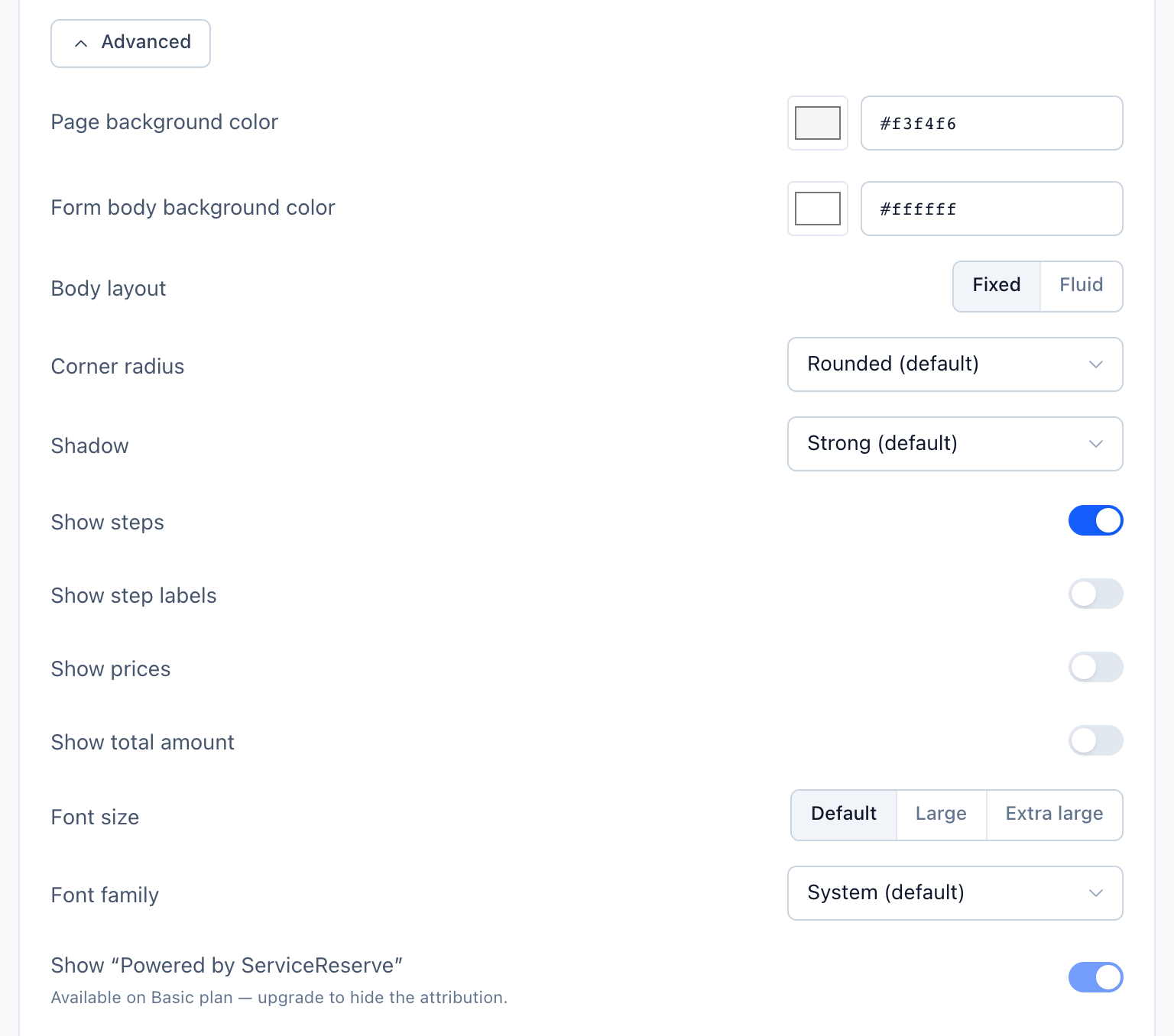
Click Advanced under the colors for more options:
- Page background color and Form body background color
- Body layout (Fixed or Fluid), plus Corner radius and Shadow for Fixed
- Show steps and Show step labels
- Show prices and Show total amount
- Font size and Font family
- Show "Powered by ServiceReserve" — on by default. You can turn it off on a paid plan. On a trial it stays on.
The floating embed button has its own colors. Set them on Integrations → Embed.
Per form, not per workspace
Branding belongs to one form. If you run multiple brands, give each brand its own form. Services and schedules can still be shared.
Related
Create a new booking form, choose which steps customers see, and share it with customers by direct link, QR code, or website embed.
Choose which contact and address fields customers see on your booking form, which are required, and how source attribution is tracked.