Forms
How-toService areas
Choose the zip codes you serve so customers outside your area can't book by mistake.
Updated Sep 30, 2026
A service area is a named list of zip codes. When the booking form asks for a zip code, it checks it against your areas. Customers inside an area keep booking. Everyone else sees a short message with your phone number.
Create a service area
Your workspace starts with one area, Primary service area, marked Default. It has no zip codes yet. Add them before you turn on the zip code check, or every zip code is rejected.
- 1
Open Service Areas
In the sidebar, under Setup, click Service Areas.
- 2
Add an area
Click Add service area, enter a name, and click Create. Use a name customers recognize, like a city or region.
- 3
Add zip codes
Use the map or paste a list. Both are described below. Zip code changes save as you go.
Add zip codes on the map
- On the Pick on Map tab, type a city in Search City and pick it from the list.
- The map loads zip code boundaries around that city.
- Click a zip code to add it. It turns blue. Click it again to remove it.
Hover a zip code to see its number before you click.
Paste a list of zip codes
- Open the Paste Zip Codes tab.
- Paste your zip codes. Commas, spaces, and new lines all work. Any 5-digit number is picked up.
- Click Add Zip Codes.
Zip codes already in the area are skipped.
Remove zip codes
Every zip code in the area is listed under Selected Zip Codes. Click the × on a code to remove it. Click the code itself to find it on the map.

Default area
One area is always the default. If a zip code belongs to more than one area, the default area is used for that booking.
To change it, open another area, turn on Default, and click Save Changes. You can't turn Default off on the current default. Set a different area as the default instead.
Turn on the zip code check
The form created when you signed up doesn't ask for a zip code until you turn the step on. Forms you create later with Create Form have the step on already.
- 1
Open the form settings
Go to Booking Forms and open your form. It opens on the Appearance tab.
- 2
Turn on the Service Area step
Under Booking Steps, turn on Service Area. The change saves right away.
- 3
Choose which areas the form uses
Next to Use, pick All service areas to accept any of your areas, or pick one area to limit this form to it. Your first form starts limited to Primary service area. Forms you create later start on All service areas. Areas with no zip codes can't be picked.
Try a few zip codes in the Live Preview on the right to check the result.
What customers see
- Inside your area: a green confirmation, such as "Great — we serve Atlanta, GA." They continue to the next step.
- Outside your area: "Sorry — we don't currently service" their zip code, followed by your phone number so they can call. They can't continue.
The phone number comes from the Phone field under Default information in the form settings. If there isn't one, the message asks them to contact you directly.
To write your own message, click the pencil icon on the Service Area row in Booking Steps. Edit Out of service area message and click Save Changes. When the field is empty, customers see the built-in message above.
Copy or delete an area
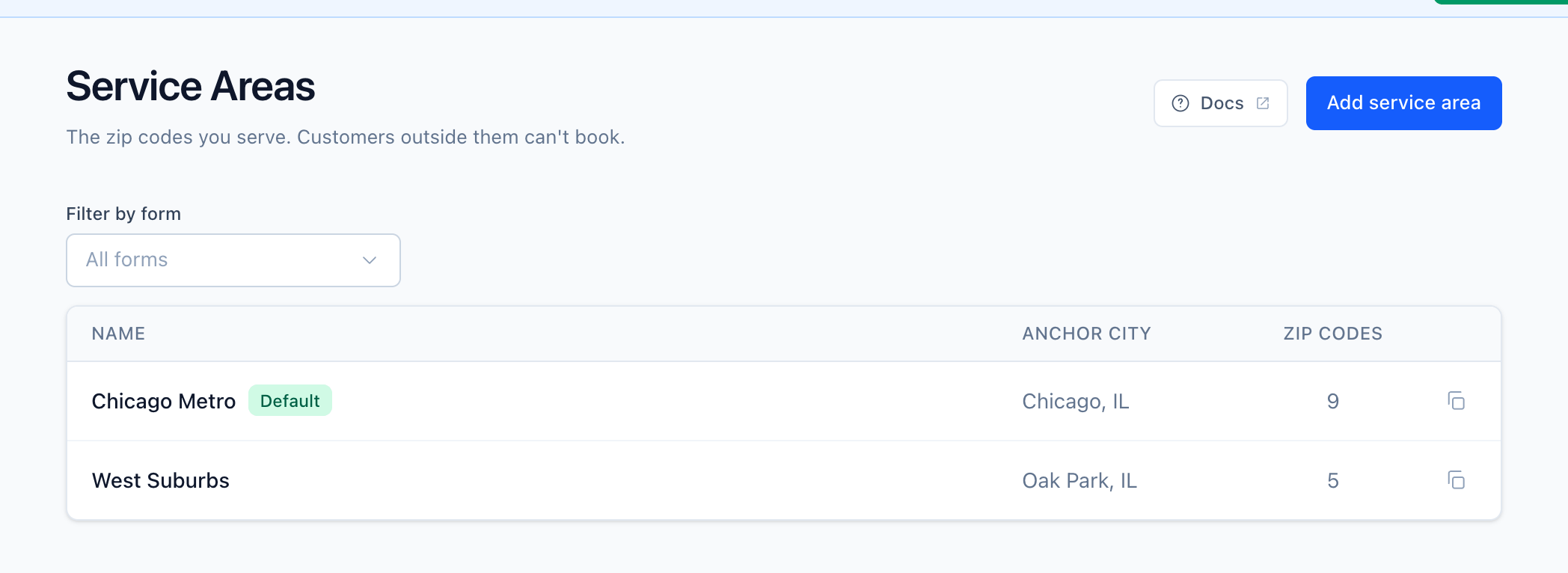
- Copy: on the Service Areas list, click the copy icon on a row, then click Copy. The copy is named "(Copy)", includes every zip code, and opens so you can rename it.
- Delete: open the area and use Delete Service Area at the bottom. You can't delete the default area or your only area.
Troubleshooting
- Customers aren't asked for a zip code. The Service Area step is off for that form. Turn it on in the form settings.
- Every zip code is rejected. The area the form uses has no zip codes. Add zip codes, or set Use to All service areas.
- A zip code you serve is rejected. Check the form's Use setting. If it's set to one area, the zip code must be in that area.
- The map is empty. Search for a city first. The map only loads boundaries around a chosen city or the zip codes you've already added.
Related
Build the services customers can book — sets, categories, services, and intake questions.
Set your working hours, booking format, and date overrides, then turn on scheduling for a form.
Logo, colors, header layout, and fonts — customize each booking form so the booking page looks like your business, not ours.