Forms
How-toManage requests
View, filter, and search the bookings that come in, move them through pipeline stages, add internal notes, and export them to CSV or the API.
Updated Sep 30, 2026
Every booking submission lands in Requests. Filter them, update their pipeline status, add notes, and export to CSV.
Pipeline statuses
Every workspace uses the same pipeline: New → Contacted → Qualified → Won / Lost.
- New — fresh submissions you haven't touched. New requests start here.
- Contacted — your team reached out.
- Qualified — scope confirmed, ready to schedule.
- Won / Lost — the outcome. Analytics uses these to compute conversion.
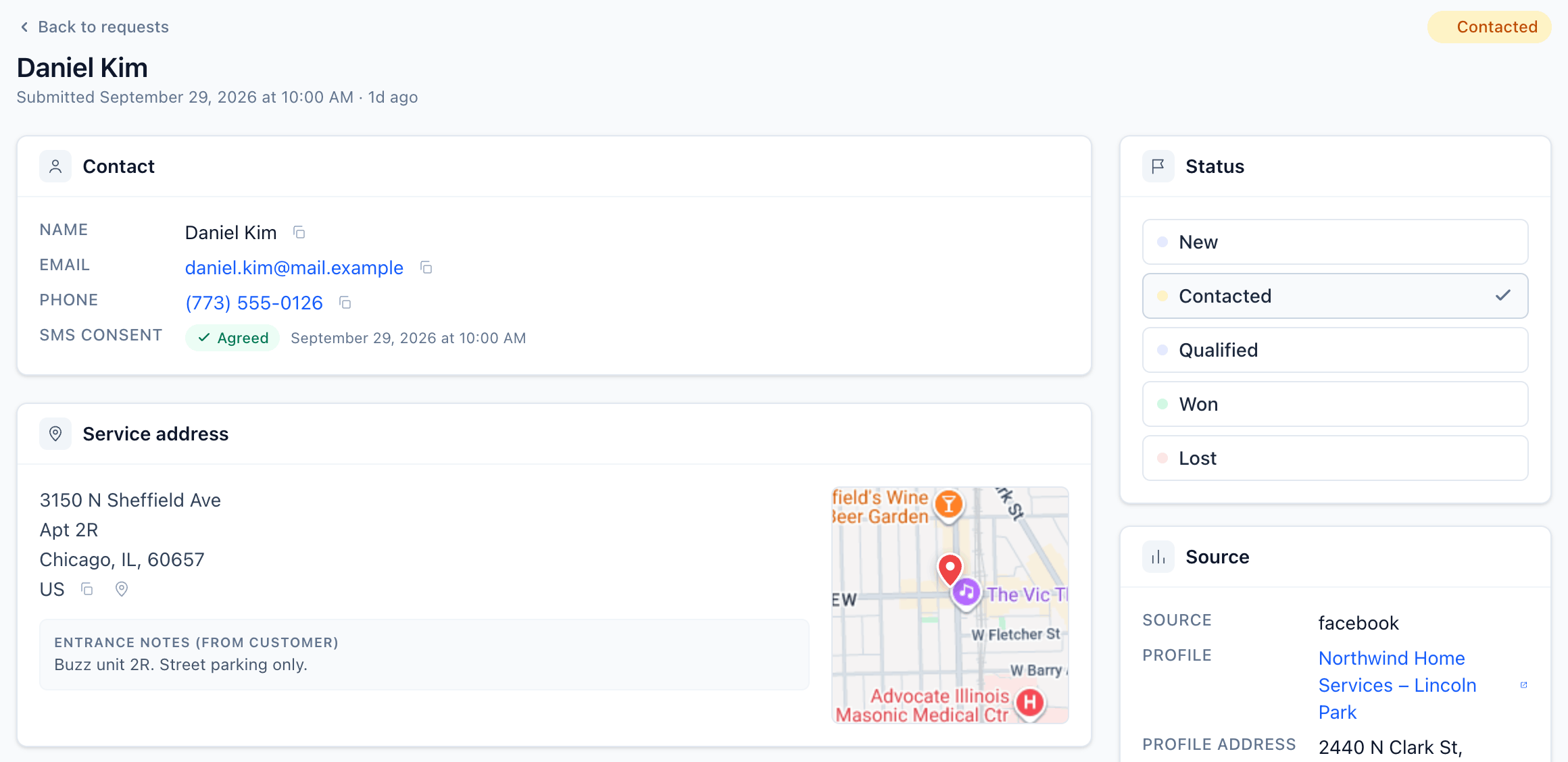
Change a request's status from the list or from the request's page.
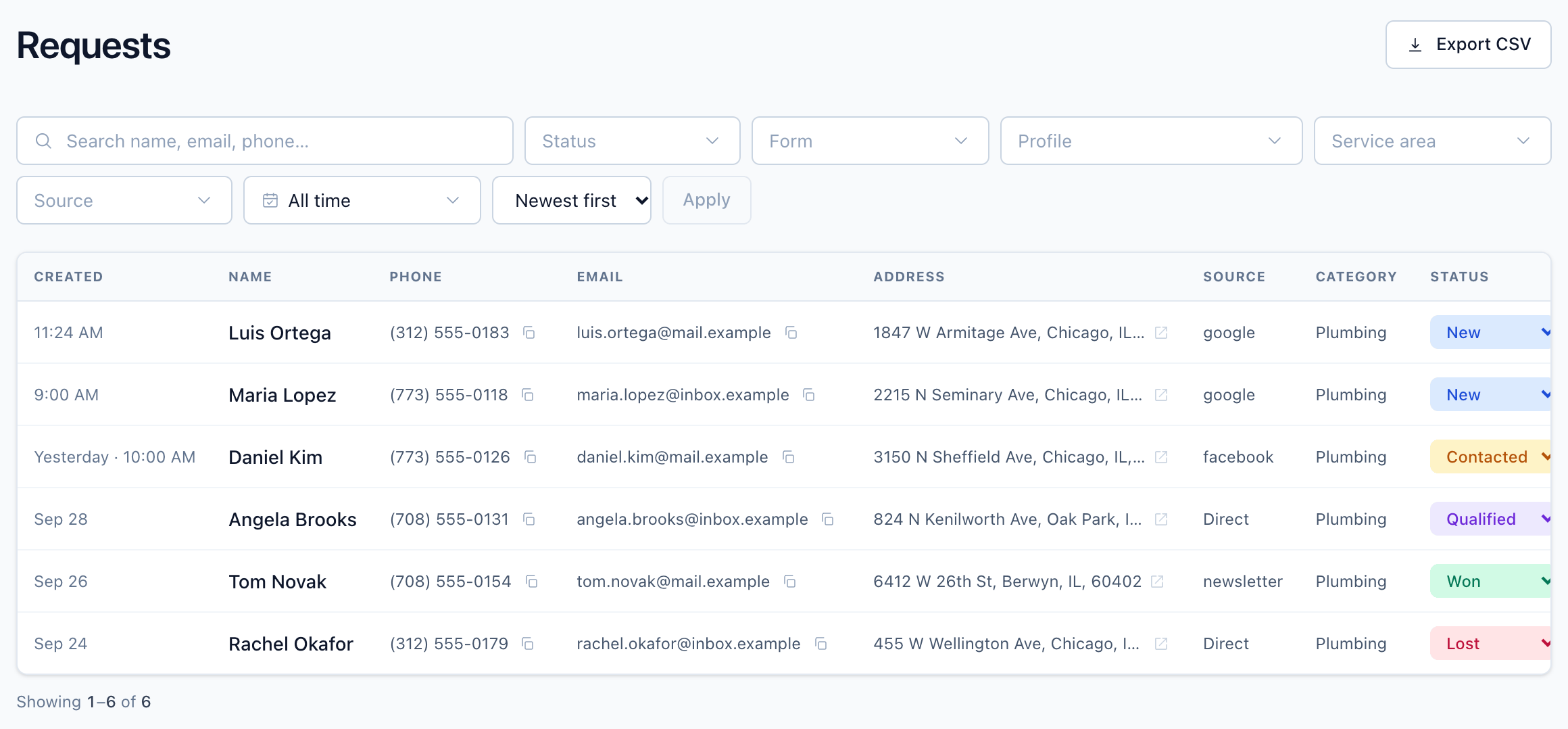
Filter and search
Filter by date range, status, form, business profile, service area, and source. Sort by newest, oldest, or name.
Search matches customer name, email, phone, and company.
Internal notes vs entrance notes
Two free-text fields on the request page, easy to confuse:
- Entrance notes (from customer) — written by the customer, like "Gate code 1234" or "Use side entrance". Your team can't edit them.
- Internal notes — your team's notes for dispatch, customer preferences, anything the customer shouldn't see.
Export
Click Export CSV to download the requests that match your current filters. The file includes names, emails, phone numbers, and addresses. Treat it as sensitive.
API access
The same data is available through the public API. See List requests. Use it to sync into your CRM or analytics warehouse.
Related
A confirmation email to the customer and a new-booking email to your team, and when each one is sent.
Send every completed booking to your own endpoint as a signed webhook or a custom HTTP request.
Paginated list of every booking request in the workspace, newest first, filterable by form or business profile.