Account
How-toWorkspace settings
Rename your organization, set timezones, change your password, and switch workspaces.
Updated Sep 30, 2026
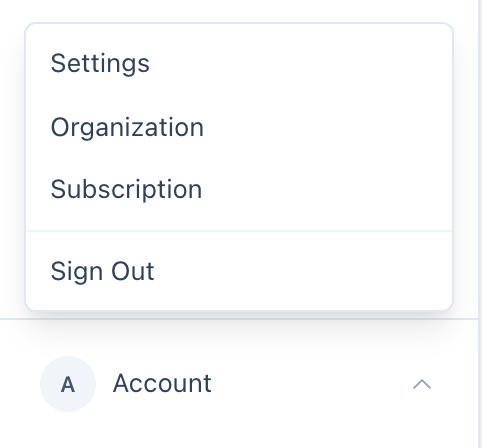
Account pages live in the Account menu at the bottom of the sidebar: Settings, Organization, and Subscription.
Your settings
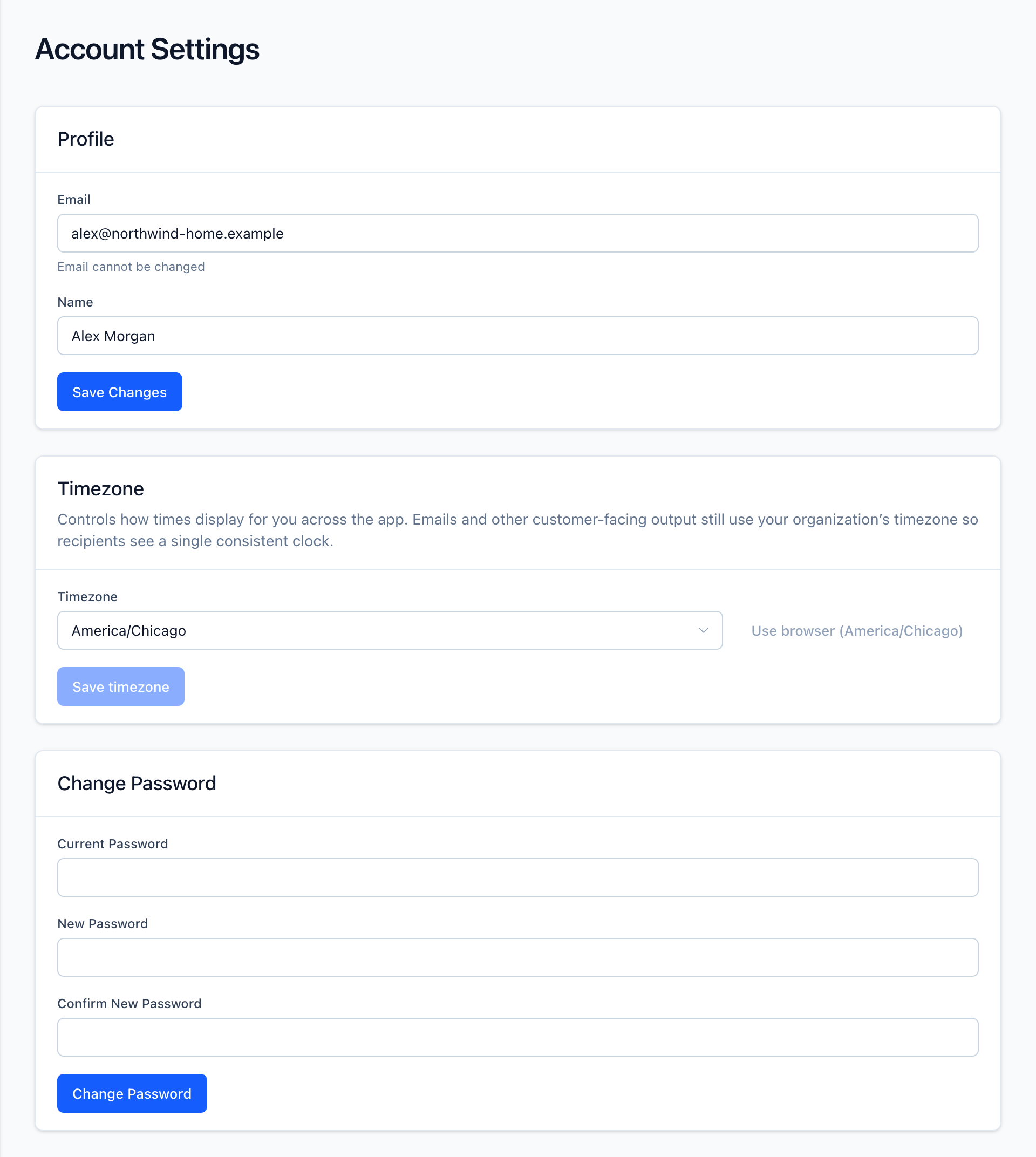
Account → Settings covers your own login:
- Email — shown for reference. It can't be changed.
- Name — click Save Changes after editing.
- Timezone — how times display for you. The default is Inherit from organization.
- Change Password — enter your current password, then the new one twice (at least 8 characters). If you signed up with Google, this section is Set Password instead, so you can also sign in with email and password.
Organization settings
Account → Organization is for owners and administrators:
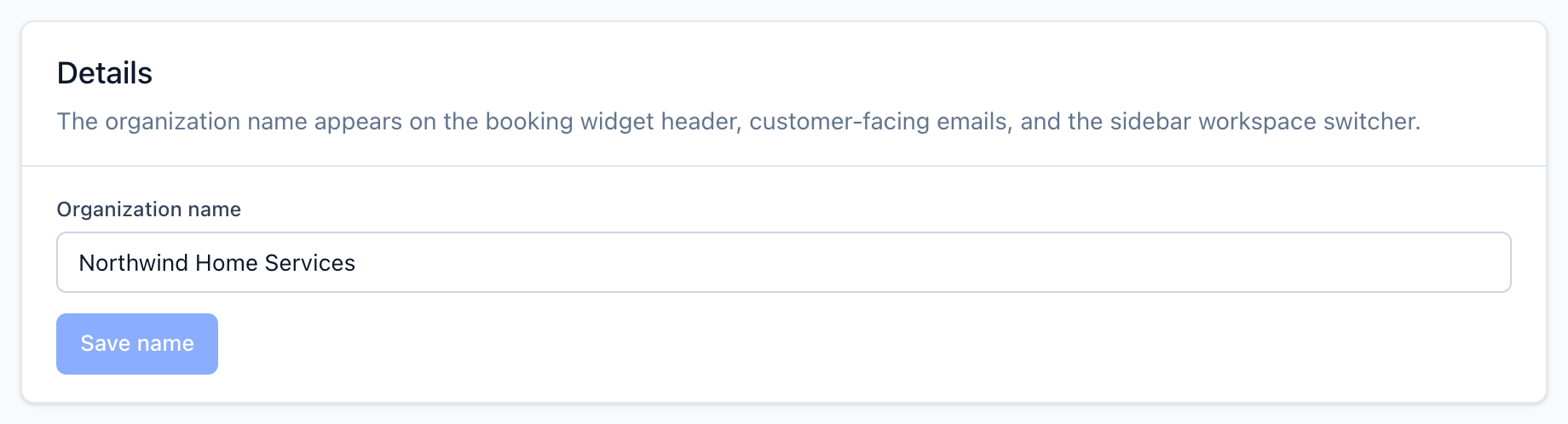
- Organization name — shown on the booking form header, customer emails, and the sidebar workspace menu. Only the owner can change it.
- Timezone — the workspace clock. Customer emails, booking confirmations, exports, and booking times use it.
- Team — invite and manage members. See Team members.
Your plan and billing details are on Account → Subscription. See Plans.
Switch workspaces
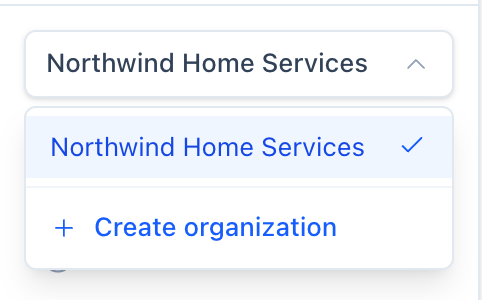
One login can belong to several workspaces. Click the organization name at the top of the sidebar and pick another one. Choose Create organization to add a new workspace with its own subscription.
Sign out
Click Account at the bottom of the sidebar, then Sign Out.
Related
Invite teammates, assign roles, and remove access from Account → Organization.
Owner, administrator, and manager — what each role can do in your workspace.
One plan at $25/month per active business profile — what's included, the free trial, and what happens if you don't subscribe.